Photoshop Advanced How well do you know Photoshop, the design world's favorite application? If you've got a good grasp of the basics but you're itching to learn more, this course is for you.
In this challenging 6-lesson course you will go above and beyond basic Photoshop by learning about illustration effects, 3D effects, photo-realistic painting, professional montage, color correction, and high-impact presentation methods. Photoshop expert Matt Kloskowski will guide you through projects and techniques that will inspire admiration and envy. You'll build on your basic Photoshop skills and tackle techniques for professional assignments.
On this page: enrollment details | instructor | class projects and objectives | prerequisites
Class Title: |
Photoshop Advanced |
|
Start Date: |
Classes start daily.
Enroll today and gain immediate access. |
|
Class Length: |
Three months of access to class materials and instructor feedback. |
|
|
Other details: |
Self-paced, online, 24 access to online learning environment |
|
|
| |
Tuition:
$803
|
 |
 |
|

TOP:
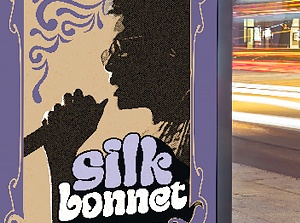
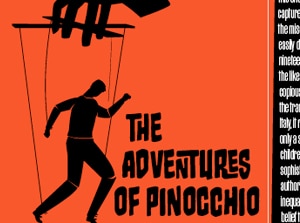
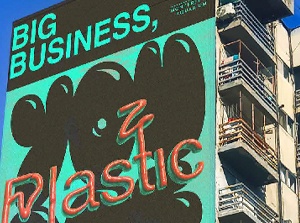
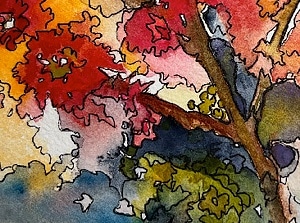
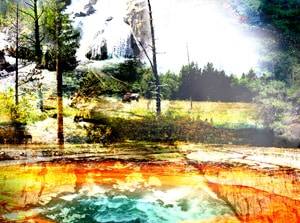
Images from Photoshop Advanced with Matt Kloskowski. Matt helps expand your Photoshop skills, and your wardrobe. |
Class Instructor Bio:
Matt Kloskowski is a writer, instructor, illustrator, and graphic designer based in Tampa, Florida. Author of Illustrator Most Wanted and Extreme Photoshop, Matt is certified as an Adobe Certified Expert, in Macromedia Flash, and as a Microsoft Certified Solutions Developer (MCSD). An expert in dynamic- and database-driven Web development, Matt writes weekly columns for the National Association of Photoshop Professionals (NAPP) and Mac Design magazine's Web site and features for Create Magazine's Studio column. Matt's tutorials have been used in over 15 schools throughout the United States and translated into seven languages. Matt graduated from University of South Florida with majors in computer information systems and marketing.
|
Class Projects and Objectives:
This online class is packed with projects and tips. Students can expect to:
- Learn techniques for drawing with the Pen Tool.
- Learn about Paths and how to use them in Photoshop.
- Learn how to select, transform, and modify paths.
- Explore the shape tools and their advanced capabilities.
- Learn how to manipulate type.
- Use the Pen Tool to trace the outline of a person.
- Use Paths and Layers to store an image and fill a shape.
- Use drawing tools to create a smooth silhouette with detail and drama.
- Add to a design the white shape and cords of personal audio device.
- Refine a composition to create a retro ad campaign design.
- Explore the ins and outs of using the Layers palette.
- Learn how to move, duplicate, lock, and track layers for better workflow.
- Learn about how to work with transparency in Photoshop.
- Learn the many applications of layer Blend Modes.
- Explore the power and flexibility of Blend If sliders.
- Create an abstract Euro style collage.
- Use the Clouds, Lighting Effects, and Extrude filters to create a convincing 3D abstract object.
- Learn how to use at least one layer set, two color-coded layers, and layer naming to keep things organized.
- Use at least four different Blend Modes either on a layer or layer set.
- Learn basic applications and property settings for brush tools in Photoshop.
- Learn to how to adjust brushes in the advanced Brushes palette to create realistic effects.
- Learn how to create custom brushes from scratch.
- Learn creative applications for digital pen tablets and how they're used with Photoshop.
- Create a photo-realistic golf ball scene.
- Achieve a photo-realistic effect with lighting and perspective.
- Use at least two brush features to create realistic grass in the foreground and background of an image.
- Review the basic selection tools and explore advanced selection procedures.
- Learn some applications for masks including clipping masks, layer masks, and quick mask mode.
- Learn how to use color, spot, and alpha channels.
- Create a dynamic collage on a personal theme from two to five source photographs.
- Use masks and selections to create a design that is easy to edit.
- Avoid any pixel-changing techniques to form the collage.
- Use brushes, gradients, and selections within a mask to hide or reveal specific areas of the photographs as desired.
- Employ creative techniques in color, selections, and layers to make the collage dynamic.
- Explore applications for the Healing Brush and Patch Tool.
- Learn how to use the Color Replacement Tool to replace and modify foreground color.
- Learn how to correct images using Shadow/Highlight, and Levels tools.
- Learn how to create and adjust Curves for advanced image correction.
- Learn the purpose of the Histogram Palette and how to control the lightness and darkness of an image.
- Remove wrinkles and other blemishes from a photograph using Healing Brush and Patch Tool.
- Create a seamless, realistic effect and submit before/after images of a retouched photo.
- Use the Color Replacement Tool to alter the color of a prominent clothing item in a photo.
- Create a seamless, realistic effect and submit before/after images of the color replacement photo.
- Use Curves and Levels to correct a poorly balanced image.
- Try to correct a photo without significantly degrading parts of the image.
- Learn about different ways of presenting work such as Layer Comps, PDF presentation, Picture Package, and Web Photo Gallery.
- Explore ways to present a portfolio as a digital imaging specialist.
- Learn how to make the best use of Photoshop color modes.
- Learn tips for syncing Photoshop work with Illustrator work.
- Explore some good sources of Photoshop inspiration.
- Develop a concept for showing off one's Photoshop skills.
- Identify source image(s) and select an eye-catching imaging and presentation approach.
- Develop a final image or set of images that draws attention to particular Photoshop skills.
| Prerequisites: |
- Own and know the basics of Adobe Photoshop CS or CS2
|
|